Facebook is all about creating friends and that the first time you signed up an account, you have nothing else in mind but to fill your friends list. As time goes by, you may have realized that it's quite unfit to have someone you really don't know personally seeing all your private information. In that case, you would "unfriend" them.
Self-preservation is innate to us and that is what also keeping us being a human. Anything that degrades us even in insignificant ways is factually frustrating; so we always tend to retaliate. This is very true when it comes to Facebook. Anyone who has "unfriended" us is not just right especially if we are not even notified about it with a valid reason. Not really degrading but sort of an offense to our ego if we have befriended someone in Facebook and yet that someone has actually "unfriended" you in unknown time.
The purpose of this post is not to make you bad but to keep your self-preservation intact. In simple term, I am giving you tips on how to detect Facebook friends who have unfriended you so you could delete them in your list.
The new Facebook allows seeing your timeline when you have activated it. This timeline feature allows you see a rundown of friends you have lost.
Here are the steps:
Activate your Facebook Timeline.
Choose a year in the timeline and find the "Friends" box.
Mouse-over and click "Made X New Friends."
As soon as the list is made available, scroll through it. Those Facebook friends with "Add Friend" next to their profile link (with photo of course), are the ones that have “unfriended” you.
This is just easy but quite an effort to some. Well, let's just hope that Facebook will have this notification feature on "unfriending" activities. But I think, Facebook has this in mind that it's just right not to have this "unfriending" feature to prevent people from feeling frustrated when they know someone has "unfriended" them.
It’s hard to believe, but mobile marketing didn’t really get going in earnest until Apple launched its App Store in 2008. Three years later there are now marketplaces on all five major device platforms - Apple’s iOS, Android, BlackBerry, HP WebOS and Windows Mobile. What’s more, there seems to be a constant footrace between brands not only to be first to market with their own apps, but to refresh them for a fickle public.
Some of what’s driving this is the zeitgeist. Overnight, it seems, apps have become deeply embedded in our culture. To stand out at a dinner party you better pack some apps. The New York Times now has a weekly column covering them. And even Sesame Street, arguably a mirror image of American society, posted a video ode to apps on YouTube that has been viewed nearly 750,000 times.
This columnist, too, has gone ape for apps. A year ago I posited that, as smartphone and tablet adoption rise, mobile applications could unseat the web as the primary means we interact with content. Now I am second guessing myself. Things are once again changing.
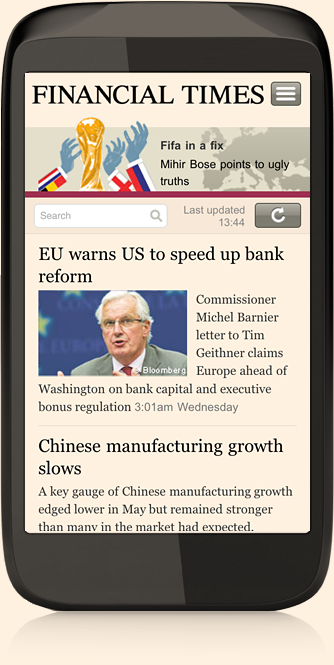
This summer, the app ecosystem started to show signs that it maybe fraying at the edge. Several major players in media and social networking including the Financial Times, Twitter, LinkedIn and
Facebook have all launched rich web applications. These sites, thanks to the magic of HTML5, run in any modern browser and come very close to matching the functionality of their “native” app cousins.
Now none of these companies has abandoned their Apple or Android apps. Still, the sudden interest in web apps is notable. There are arguably three factors driving it.
First, HTML5 has finally matured into a strong alternative to native iOS and Android apps. These web apps can even run offline.
Second, it shows that perhaps developers are frustrated that they need to support multiple platforms. Android devices alone come in so many shapes, sizes and resolutions, that supporting them is a difficult and expensive challenge. Web apps solve this conundrum.
Finally, there’s freedom. Apple, most notably, recently changed the way that developers can sell content from within their applications. If a developer links out to their own online store, they must also allow consumers to purchase content using an iTunes account. However, Apple takes a 30% cut of the latter.
Most content companies have reluctantly relented to Apple’s rules. However, a few, notably Amazon, chose not to provide any e-commerce functionality in their iOS ebook apps. Amazon instead responded by launching the Kindle Cloud Reader, a web application that runs in a browser across multiple platforms. It features a rich, engaging shopping and reading experience that rivals their native apps. Downloaded books can also be read offline.
To date, no major brand has made the jump to prioritize an HTML5-based web application over a native app. This is for a good reason. Most consumers are still downloading smartphone and tablet apps in droves.
However, this could change over time as marketers get more comfortable developing for mobile devices, start dabbling with new web development tools from the likes of Adobe and aspire to exert greater control over user experience.
Here are three trends to watch when considering your own strategy.
First, there’s Apple. To date, the company has backed off on some of its more draconian policies. Still, they remain strict. However, if more companies start to prioritize their web apps over iOS apps, Apple may blink to protect its ecosystem and relent further.
Second, there’s Google. While Google has thousands of native applications in its Android Marketplace, the company has also been actively promoting HTML5 as an emerging alternative, starting with its own sites. Web applications are arguably more important to Google than native apps. They encourage users to browse and search more and thus could drive ad revenue.
Finally, there’s the global economy. The fragmentation in mobile space shows no signs of abating. Marketers may decide it’s more cost effective to develop a strong web application and control the experience end-to-end, rather than support hundreds of phone and tablet formats.
Time will tell how this all shakes out. Remember that just a few years ago there were hardly any mobile applications. Today there are hundreds of thousands of them. Things can change fast if developers are motivated.
As more customers become smartphone-savvy, local businesses can leverage the opportunities offered by Facebook Places and Facebook Deals to get new customers to come to their location and to reward current customers. Mari shares what you need to know.
Discover how to get more business from smartphone-savvy customers.
Facebook Places
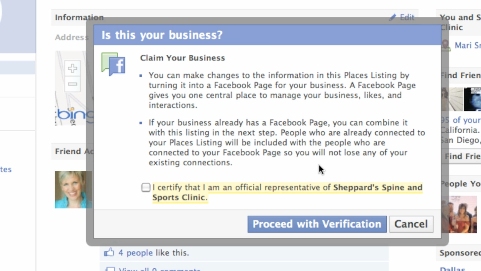
You’ll learn how to claim your business on Facebook and take advantage of your Facebook Place page so you can make offers through Facebook Deals.
Find out how to claim your business so you can start offering Facebook Deals.
Facebook Deals
Find out about the four different kinds of deals and how your business can use them.
Individual deals: For one-time offers
Loyalty deals: To reward repeat business
Friend deals: To incite up to 8 people to check in at once
Charity deals: To get people to donate to a charity
And Mari shares how some brands are using deals to grow their business.
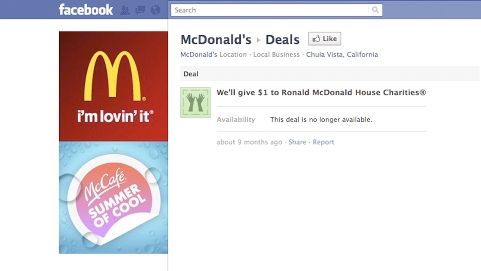
Hear how McDonald's used a Facebook Charity deal to promote their business.
Be sure to listen for Mari’s hot marketing tip to find out how you can also include Twitter to leverage your Facebook marketing with Places and Deals.
Bing isn’t the top search engine used by searchers but it still is a powerful tool for driving traffic to your blog and most likely you’ve got a good percentage of organic traffic coming from Microsoft’s Bing – enough to warrant a bit of time learning more about it and how you can maximize some returns.
And the reasons are only getting stronger: If you add up Bing and Yahoo! search queries you might get an accurate picture of what the future looks like for your blog and it’s traffic from Bing since Yahoo!’s search engine is going to be powered by Bing (and co-branded with “Powered by Bing”) starting in early 2012:
Microsoft’s Bing search engine will power the Yahoo website and Yahoo will in turn become the advertising sales team for Microsoft’s online offering.
That’s worth noting – that’s worth mentioning and studying a bit, right? And even without a Yahoo! + Bing partnership it’s been shown that Bing’s marketshare is increasing year over year growing nearly 7% from 23.64% to 30% from 2010 to 2011!
Some people have suggested that at some point the possibility of Bing overtaking Google’s marketshare is possible:
Possible? Likely?
Now I’m not sure if it’s really going to happen but it’s worth my time (and yours) to understand at least the basics of Bing-related SEO strategies, right?
And, of course, we all get traffic via Bing already so it’s also worth it to optimize and maximize if possible:
I'll take any and all traffic, right?
So here are a few suggestions that are relevant to not only search engine optimization for Bing but also most other search engines as well.
Bing breaks it down into 5 main areas: Crawlability, Site Structure, On-Page SEO, Content, and Links:
Your Blog’s Crawlability:
XML Sitemaps – Make sure to have one! You can create one here if you have WordPress.
Navigation Structure – Make sure it’s easily accessed by crawlers. Learn more about site architecture here and here as well.
Logical Hiearchy – Make sure your content is laid out logically and with a focus on usability.
Internal Linking – Make sure your content has a great internal linking. Become a master architect!
Clean URLs – Make sure that your links have no extraneous parameters where possible. Examples are adding sessions, tracking, and other calls on the links when not necessary.
Rich Media – Make sure they don’t block links or cover up links. See SEO limitations as well here.
Your Blog’s On-Page SEO:
Good Titles – Should be unique relevant and between 60 and 70 characters in length. Read this kick-butt post on how to optimize your titles! Only one title per page please!
Meta Descriptions – Make sure they are unique, relevant, and 160 characters or less. You can learn all you want about meta descriptions and meta elements here. Only one description per page as well here!
Content Tags – Make sure you have the right content tags (H1, H2, etc) in your content. Learn more here.
Images – Make sure you are using images well and wisely with ALT tags as appropriate and descriptions with keywords. Learn about images here.
Keyword Targeting – Make sure you use targeted keywords for each blog post and piece of content.
Internal Linking – Make sure the links have the right anchor text.
Your Blog Content:
Keyword Research – This is so important that I dedicated an entire blog post to it! Learn more about keyword research.
You’ve heard this: “A picture is worth a thousand words.” But can it actually help you engage with customers and prospects?
In this post, I’ll share ways you can ensure your images provide the best experience they can; ones that will help keep the conversation flowing.
Among the topics covered in this post are tools, tips and strategies that can be used to enhance the visual representation of your business.
As I’ve done in the other posts in the 26 Tips series, this post provides an easily digestible A-Z guide to which you can return time and again.
A-Z Guide
#1: Adverts
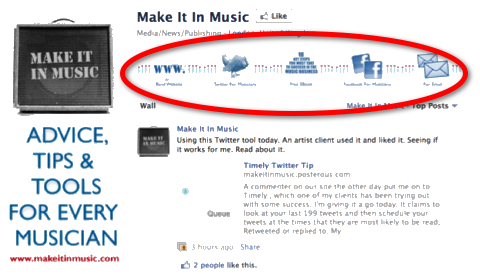
Location, location, location. Talk about good real estate. You can use the Facebook photo strip space for pictures that serve as adverts for your business. You can include descriptions, links and calls to action.
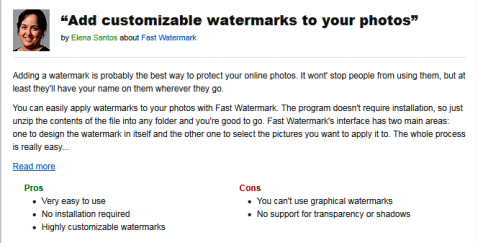
Ann Smarty suggests watermarking your images to protect your brand and increase brand awareness. She recommends a number of tools to get the job done; e.g., Fast Watermark and Photo Watermark.
Fast Watermark is a quick and simple tool that allows you to add a watermark to your photos.
#3: Creative commons
The service through Flickr makes it possible for users to offer their work under a creative commons license where people can search through images under each type of license: attribution, noncommercial, no derivative works and share alike. Before using a creative commons image, be sure to check out the license.
#4: Digital art
Greg Finn writes that digital art is a staple in social media news sites and suggests that design-related images should be “high resolution and content should be truly extraordinary.” He describes four examples of design images typically used in social media: design art, graffiti, web design and fonts. One outstanding example he references was created by Kevin Hulsey for Royal Caribbean, which can be viewed on his site, where you not only see a representation of the full ship but can go cabin by cabin through the ship. Pretty impressive!
#5: Effects
Create interesting effects with your images to help them stand out in the crowd. There are countless apps which can help to create all kinds of effects; e.g., collages, high dynamic range rendering, tiles, vintage, sketches and interesting textures. If you work on a Mac, you can check out the photography apps online.
#6: Facebook Photos Plus Comments
Photos and comments are the perfect duo for Facebook. While you may think you have the most fantastic photo to post on Facebook (and you might), sometimes it won’t be enough to stand on its own. As, Jim Lodico writes in his post, 6 Tips to Increase Your Facebook Edgerank and Exposure, ”Photos and videos show up in the Facebook new feeds as thumbnail images. Due to their size, they almost require interaction as users click on them to make them large enough to see. Be sure to add a comment that encourages users to open the photo and add comments of their own.”
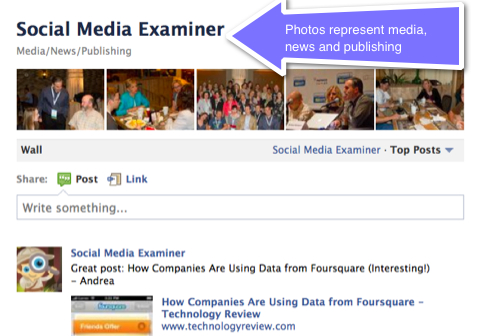
Use photos that represent your business.
#7: Google index
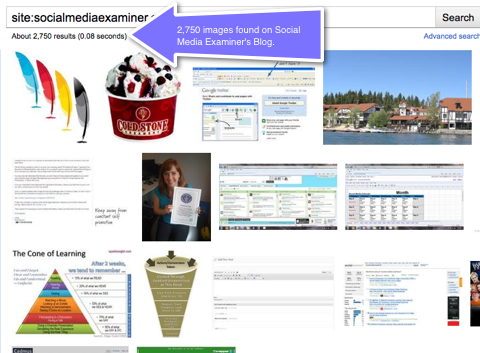
Text isn’t the only thing that Google indexes. That’s right. Google indexes your images too. Images are a very powerful way to add more Google juice to your site’s search ranking. Panda’s post 9 Ways of Optimizing Your Site for Image Search says, “If you have optimized your images correctly, you can get yourself a very attractive top 10 position by tagging your images correctly.”
Google found 2,750 images on Social Media Examiner in 0.8 seconds!
#8: Hipstamatic
If you’re on the go and want to take some interesting photos with your iPhone, Hipstamatic is a great app worth exploring. Photographer Stephanie Roberts lists it as one tool to fuel your creativity in her article in Digital Photo magazine. She says, “Hipstamatic mimics the unique style of vintage prints characterized by vignettes, blurring, textured edges and oversaturated colors created with the original analog plastic camera. Using a square-format viewfinder, the app lets you switch ‘lenses,’ ‘flash’ and ‘film’ with the swipe of a finger. I often shoot with Hipstamatic because I like composing images in the square-format viewfinder and I like the creative constraint of choosing the ‘film’ and ‘lens’ before I shoot.”
Rich Brooks from Flyte talks about Hipstamatic and other apps in this video from 207, the evening news magazine on southern Maine’s NBC affiliate, WCSH.
#9: iPhoneography
Stephanie Roberts, author of The Art of iPhoneography: A Guide to Mobile Creativity, gives a number of compelling reasons for seeing the iPhone camera as a powerful creative device for photographers. My personal favorite is: “You rarely go anywhere without it, which means you increase the odds of your ability to capture fleeting magic moments as you move through the day.”
I can’t begin to tell you how many times I think I should have brought my digital camera when I remember that my iPhone, the constant friend and companion, is ready and waiting and very up for the task at hand!
Think of iPhoneography as a mobile method for making art as you move through life.
#10: Join the community and be social with your photos
Stephanie Roberts also recommends creating an Instagram presence. “Instagram is a rapidly growing social network of iPhoneographers sharing images in real time. The Instagram app displays a chronological feed of photographs shared by users you choose to follow. You can use Instagram to shoot an image (or choose an image from your photo library), apply an image filter (or not) and quickly share the image with your followers. Instagram also can automate image sharing to your online journal, or your Twitter or Facebook accounts.”
Instagram is a fun and quirky way to share through pictures.
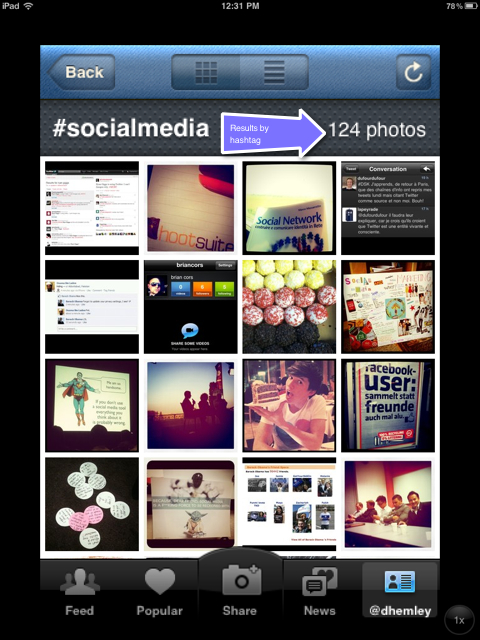
Steve Kovach’s post, HOW TO: Use Instagram for Your Business recognizes the ways businesses can use Instagram to make their photos searchable with hashtags. As he says, “This is fun for the average user, but a huge win for brands that want to get more attention with the Instagram crowd.” He offers four tips for leveraging hashtags for your brand on Instagram: host a contest, target people by interest, create an RSS feed and encourage participation.
News organizations are using Instagram, too. In this recent post, Anthony Quintano, the community manager for @NBC News, offers three tips: upload original photos that share a unique perspective, thank and follow other Instagram users and search for user content.
You can also search for hashtags that interest you. For example, see who has tagged their photos #socialmedia.
#11: Keywords
Where would we be without keywords? They’re everywhere we search today. But when it comes to searching for the perfect image, they become even more important to understand. Getty images put together a very comprehensive guide to help users search for images. Whether you’re looking on Getty Images or not, the concepts are important to consider. For example, they suggest using keywords related to concepts, topics, people, age, sayings, image and footage styles, editorial-specific terms and human emotions. They offer advice for refining your search; e.g., combine terms, be creative, editorial and footage.
#12: Link
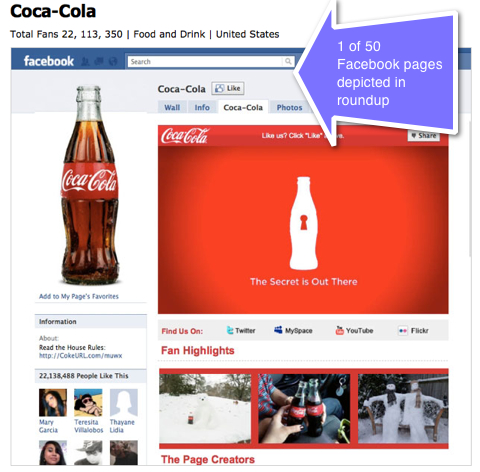
This may be an obvious piece of advice, but nevertheless it’s worth mentioning. Users have become accustomed to rolling over images in hopes that they will be able to navigate to a destination. So why not link the screenshot and take users directly to the website. This is particularly useful on web roundup posts. In this roundup, “The Art of Facebook Page Design,” the images represent the artwork of 50 Facebook pages. When the user wants to see more about the Facebook page, he or she can easily navigate to the page by clicking on the image.
Link screenshots directly to the website.
#13: Movies
Images needn’t be stills. With a variety of tools, you can create short movies with a series of photos, add music, embed on your blog, link on Facebook and wow, think of the impressions you can make. One such tool is Animoto.
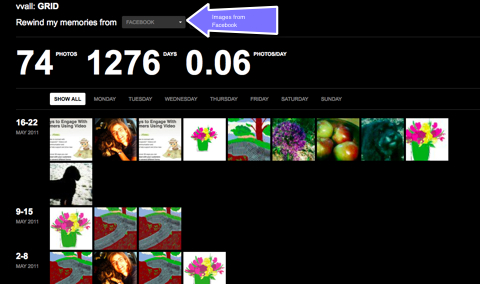
Looking for a way to keep track of the images you’ve shared on different social networking sites? There are several options to help you. One such product is GRID, which “fetches all your photos from different social networks and lists them out by week. Currently GRID can rewind your memories from Facebook, dailybooth, Instagram, picplz, twitpic and yfrog.”
Pixable, another fun service, makes it possible to view your friends’ photos shared on Facebook. Young writes in the post, View Facebook Photos with Pixable, “For every photo you can see on the Pixable website, you can also like it, read its comments, comment it and see who is tagged in it. Very enjoyable, especially when your friends share many beautiful photos of themselves.”
See all of your images in one place.
#15: Optimize
In the post 9 Ways of Optimizing your Site for Image Search, we’re advised to: use descriptive file names, use the html alt tag, add descriptive text close to the picture, keep the most important images close to the top headline or title, put photos within articles and blog posts away from navigational elements, do not add code to break out of frames, use images that read well when thumbnailed, make the photos accessible, and use social photo sites like Flickr with links back to the relevant page on your site.
#16: Profiles
The placement of social icons on blogs is an important consideration. Cindy King points out in her post, 19 Ways to Use Images to Enhance Your Blog, “A blog is considered a social media platform and you want to make it easy for readers to connect with you on the social platforms they feel most comfortable with. This is why many blogs have easy-to-recognize social icons in a prominent position.”
#17: Quality of experience
While we’ve been talking largely about images and photos so far in this post, Greg Finn suggests six formats for informative images that work in social media: charts/graphs, flow charts, how-to’s, maps, screenshots, and guides. “The key for these images is to be easy to consume and to be comprehensive. The images should not only be helpful, but should also be designed well. Great design can make an ordinary informative image turn into an essential resource.”
#18: Resize images and use same sizes
Greg Finn offers great advice for using the same size for each image in your piece. Go a step further and make it part of your editorial standards and request that all images have the same dimensions. As Greg says, “This gives your article a more professional feel and gives the submissions a much more uniform look. Never use a jumble of different image sizes; your story will look much more amateur.”
#19: Screenshots
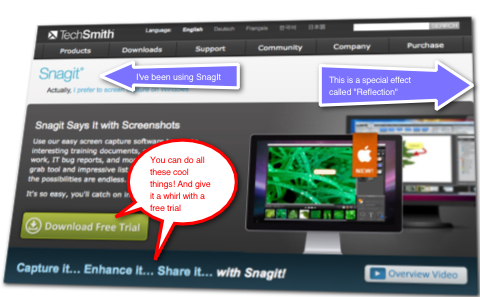
Sometimes nothing says it better than a screenshot, the “image taken by the computer to record the visible items displayed on the monitor, television, or another visual output device.” (Wikipedia) Screenshot images are often used to demonstrate a point and show users how to complete a task. Another powerful feature of screenshots is the ability to annotate them, and this is where you might want to explore software options. Recently I’ve started using SnagIt by TechSmith, which I’ve used in this post. The annotating features really help add pizzazz.
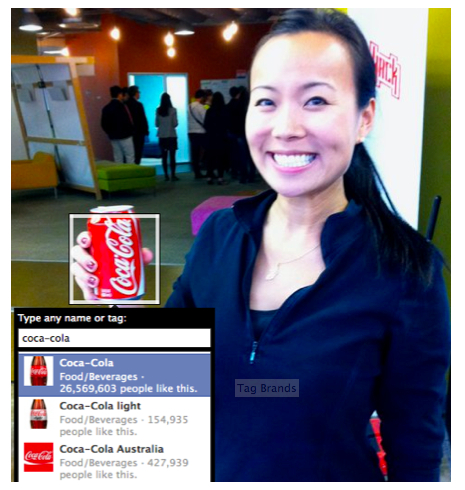
One of Facebook’s newest developments is the ability to tag pages in user’s photos. Right now it’s limited to pages categorized as “Brands & Products,” but it can be very effective for brands looking to expand their reach. As Josh Constine writes, “A tag of a brand or public figure represents a strong social recommendation of that Page, which will make a user’s friends curious to visit that Page and improve the chance that they’ll Like it themselves.
“Photos are Facebook’s most popular native application, receiving huge numbers of Page views. Tags of Pages in Photos could gain many impressions from a user’s friends over a long period of time, offering many opportunities for that Page to gain new fans.” Josh demonstrates this new feature in the Coke brand photo below:
Tagging products can expand a brand's reach.
# 22: Volume
While there aren’t any hard-and-fast rules about the number of images to include in a blog post, I think most bloggers would agree that effective blog posts should contain at least one or two. Keep in mind that Images will help engage readers by breaking up long blocks of text and enhancing the readability of the page. Posts on Social Media Examiner for example, always include a number of images and the pièce de résistance, captions!
#23: Widgets
Cindy King discusses widgets and how most social networking sites provide widgets for you to embed on your blog. Cindy says, “This is a great way to grow your communities on social media platforms. It gives your readers the choice of where they want to connect with you. And as the communication styles vary on different social media platforms, it also lets your readers choose how they want to connect with you.”
#24: Experience
In the post How to Improve the Appeal of Your Graphics, Connie Malamed discusses research that indicates the ease of processing information (otherwise known as processing fluency) which influences a person’s aesthetic pleasure and contributes to positive experiences. Four features attributed to facilitating fluent processing are: symmetry, high figure/ground contrast, visual clarity and less information rather than more.
Use images as a way to facilitate a good experience for your customers, fans and followers.
#25: Why images
Adam Singer describes images as being vital to modern blogs for six reasons: content moves through the social web lightning-fast and strong imagery can’t be ignored; images are a signal to visitors that a site’s material is premium and unconsciously we elevate the worth of a site that has images mixed in with stories; strategic imagery helps bloggers build their brand—the imagery can help build a stylish brand associated with their sites; images are mood setters and help writers tell their stories better; images are a precursor to the inspiration that happens from effective copy and can give a blog an advantage over their competition; images help bloggers create viral content.
#26: Zero impact
At this point we’ve explored 25 tips and good reasons for using images in your social media to engage customers, followers and fans. With that being said, there’s really no good reason to use images that have zero impact. I’ll end with these last pieces of advice: with all the great possibilities out there, use images with the most dynamic impact and ones that are representative of the points you are trying to make.
Don’t you wish you could track the traffic impact of Twitter, Facebook and Google+ using Google Analytics? Well now you can. Keep reading to learn how.
Google’s getting social in a big way.
Google has been quite busy lately, rolling out Google+ (Google’s social network) to a limited audience, the Google +1 button (a feature similar to Facebook’s Like button), a new Google Analytics interface and Google Analytics Social Interaction Tracking.
Google Analytics Social Interaction Tracking
This new Analytics feature allows you to track social interactions on your website, your blog or on your Facebook fan page. These actions include the Twitter button and the Facebook Like, Unlike and Send actions.
In this article, I will guide you step-by-step in adding this powerful new tracking feature to your Facebook tabs or web pages.
NOTE: Adding Google Analytics Social Tracking requires access to and modification of your web page files. It’s pretty basic, but you should be somewhat comfortable working with HTML files.
What is currently supported by Google’s Social Tracking
As of this writing, my testing shows that the following social buttons are supported:
Facebook Like, Unlike, Send
Twitter (only via the “official” Tweet button, not Tweetmeme or other third-party buttons)
Google+
I’ve not yet found a way to track the LinkedIn Share button. If anyone has had success tracking this button with the new Google Analytics, let me know in the comments!
Google’s New Google Analytics Interface and Tracking Code
In order to implement Social Interaction Tracking, you will have to update your current Google Analytics code to the latest version, and then add a few snippets of code to your HTML file.
In order to view the Social Interaction Tracking metrics, you will need to use the new Google Analytics interface, which is available as an option at the top of the page when you’re logged in to your Analytics account:
View the new Google Analytics interface by clicking “New Version” at the top right of the screen (see above image).
Click on the domain account you wish to access.
Click the “gear” icon, in the orange bar at the top right of your screen:
Click on the “Tracking Code” tab: Under “Standard” tab and below “1. What are you tracking?” select either “A single domain” (if you’re tracking a website or blog) or “Multiple top-level domains” (if you’re tracking a Facebook fan page).
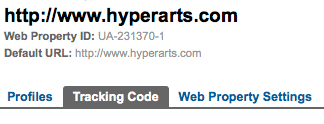
Copy the code under “2. Paste this code on your site”. It should look like this, but with your “UA-xxxxxx-x” account number:
<script type="text/javascript">
var _gaq = _gaq || [];
_gaq.push(['_setAccount', 'UA-xxxxxx-x']);
_gaq.push(['_trackPageview']);
(function() {
var ga = document.createElement('script'); ga.type = 'text/javascript'; ga.async = true;
var s = document.getElementsByTagName('script')[0]; s.parentNode.insertBefore(ga, s);
})();
</script>
You now have your updated Google Analytics code.
Putting the code in all the right places
The new version of your Google Analytics code should be placed before the closing </head> tag of your HTML file. (Yes, this is different. The old version was usually placed before the closing </body>, but that was then…)
Between your Analytics code and the closing </head> tag, insert this bit of code that calls the JavaScript that enables the social tracking:
The “#appId=xxxxxxxxxxxxxxx” is a random app ID that Facebook generates that allows you to access Insights for the button, but it’s not necessary for the button to work. In my example, I omit the appId value from the code, which will work fine.
IMPORTANT: You must add the snippet of JavaScript (shown below) to the code that Facebook generates so that actions on that button trigger Google Analytics:
Paste your Like button code anywhere between the <body> </body> tags.
Viewing your Google Analytics Social Tracking reports
As mentioned above, the Social Tracking reports are only available in the new Google Analytics interface. (See above for how to choose the new version option.)
NOTE: It usually takes a few hours for Analytics to reflect activity on your web pages, but it can take up to 24 hours. See “Troubleshooting” below.
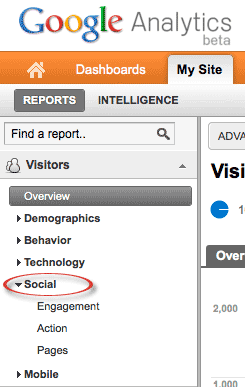
After logging in to your Analytics account, click into the domain for which you want to view reports, then in the left menu go to “Visitors > Social“:
You have three options for viewing the social interactions:
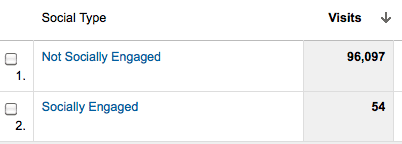
Engagement: You see two metrics: 1) Not Socially Engaged and 2) Socially Engaged. This shows you how effectively each page is in motivating users to Like or Tweet your content:
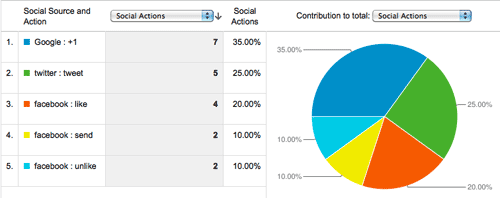
Action: This shows you the specific actions taken (Like, Unlike, Send), how many of each and percent of total actions:
Pages: Details on which page’s actions were taken and what those actions were.
Adding the Twitter button to the mix
Google’s Social Tracking will also track tweets made with Twitter’s Tweet button. Interestingly, Tweetmeme now recommends using the Twitter Tweet button.
After logging in to your Twitter account, go to the Twitter Tweet button page, where you can select one of the three available options:
Once you’ve made your selection, just copy the code that is generated for you and paste it somewhere between the <body> </body> tags of your web page. Your code should look like this:
Add a bit of JavaScript to activate Twitter Social Tracking
Before the closing </head> tag, place this bit of JavaScript to activate the Google Analytics tracking (the social tracking won’t work without this tag!):
<!-- Load Twitter JS-API asynchronously -->
<script>
(function(){
var twitterWidgets = document.createElement('script');
I don’t think it matters where you put the above Twitter-tracking code, as long as it’s inside the <head></head> tags. I put it right before the closing </head> tag, after the Google Analytics tracking code and the call to the “ga_social_tracking.js” JavaScript.
A word about Google +1 tracking
As Google states on its page about Social Interaction Tracking,
Out of the box, Google Analytics provides integrated tracking with the Google +1 button. This means if you have set up both Google +1 and the latest version of Google Analytics on the same page, all +1 social interactions will be tracked automatically.
As I mentioned above, the +1 button is Google’s version of the Facebook Like button. I’ve added it to the HyperArts website and blog, but I haven’t seen much traction with it yet. However, adding it can’t hurt, and as it grows in popularity it will help your content reach a larger audience.
Troubleshooting
If you implement the above instructions accurately, you should see tracking results within several hours of initiating tracking, although Google saysit can take up to 24 hours to display results.
If, after 24 hours, you don’t see any social tracking results (and I’m assuming you will have done some testing of the buttons to ensure they work and to provide some data to Analytics):
Double-check your code. Make sure you have placed the code as instructed above, and make sure your URL values are correct.
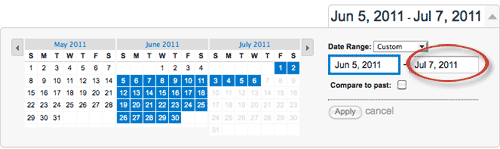
Check the Google Analytics date range. By default, Google Analytics displays the past month of data up to the previous day. You can manually change that range to include the current day by clicking the arrow next to the date range and changing the end date to the current day:
Adding Social Tracking to your WordPress self-hosted blog: There is already a plugin for this feature.
Although this may look a bit, um, complicated, it should be pretty easy for those who are comfortable working with web files.




 And the reasons are only getting stronger: If you add up Bing and Yahoo! search queries you might get an accurate picture of what the future looks like for your blog and it’s traffic from Bing since Yahoo!’s search engine is going to be powered by Bing (and co-branded with “Powered by Bing”) starting in